Help · Guide 2 of 5
Upload and fix fonts
Turn your PDF into a template, then make sure every font it uses is in your library.
-
Step 1
Upload the PDF
In your workspace, choose Upload a new PDF. Drop the file in (or click to choose it), give it a title if you like, and press Convert to template. A typical card takes a few seconds.
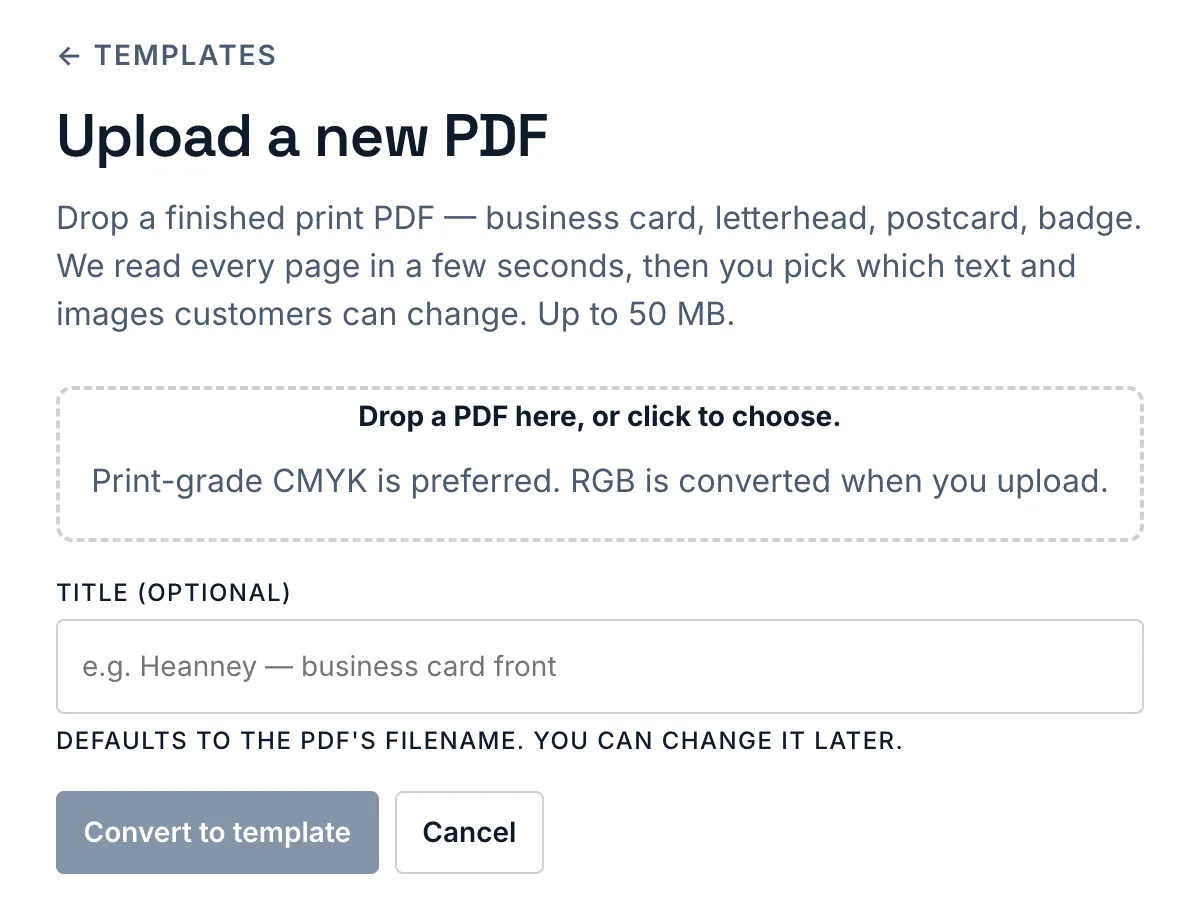
The upload page: drop a finished print PDF, then Convert to template. -
Step 2
Read the font check
Right after upload StackFill lists every font the PDF uses:
- • Built-in: a standard PDF font such as Helvetica. Nothing to do.
- ✓ Ready: already in your team library.
- ✗ Missing: StackFill needs the font file so new text a customer types prints in the same typeface.
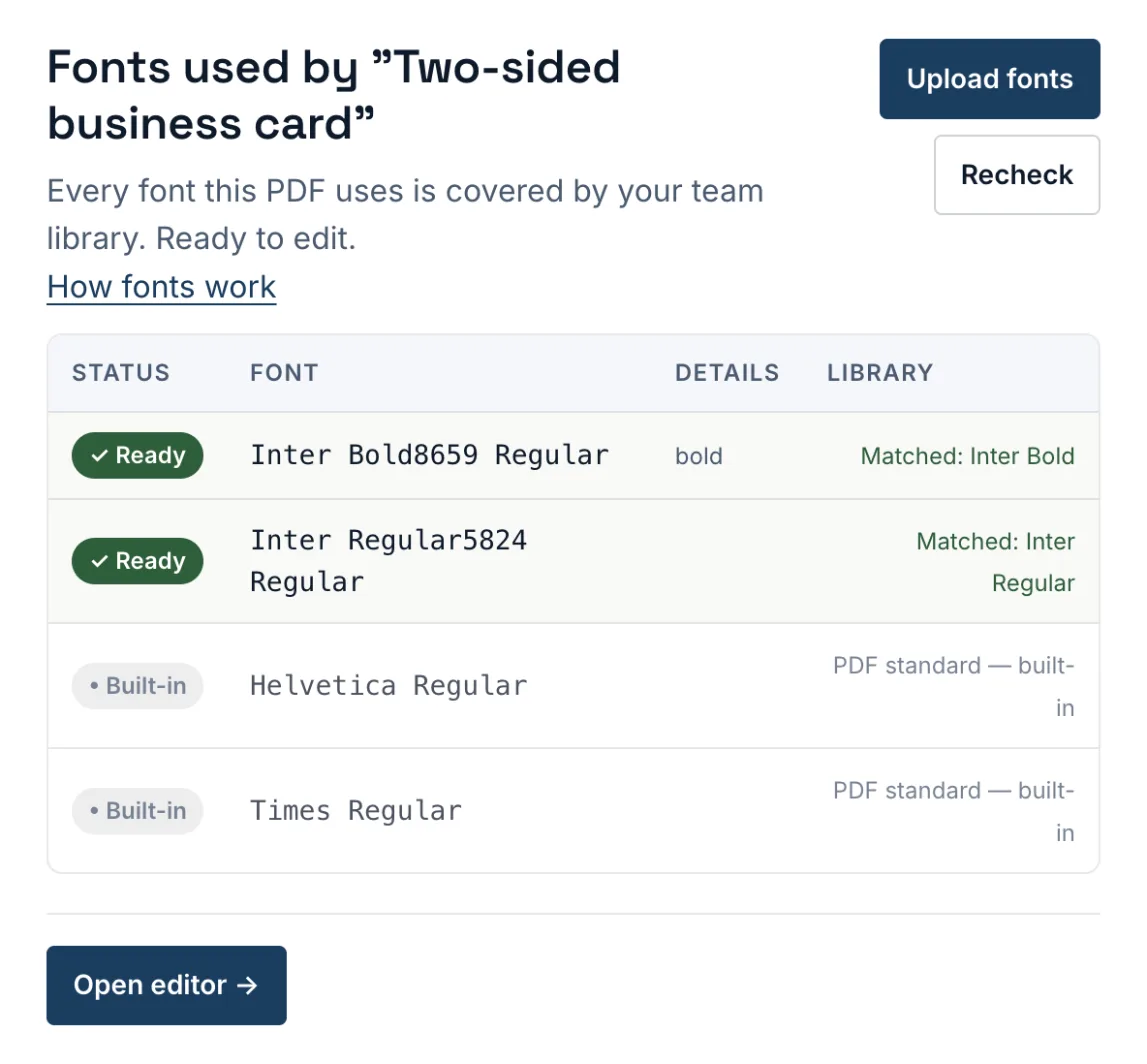
The font check right after upload: every font is Ready or Built-in, so Open editor is next. -
Step 3
Upload the missing font files
Press Upload fonts and add the TTF or OTF files (up to 10 MB each), the same files your designers have installed. Then press Recheck. Fonts go into your team library once, and every later template that uses them matches automatically.
Only upload fonts your licence allows you to use this way.
-
Step 4
Open the editor
When everything shows Ready or Built-in, press Open editor →. You can also skip and add fonts later; just add them before you publish, so customer text prints in your typeface. In the editor you can change the font of any text line from the inspector.