Help · Guide 4 of 5
Share the link
Publish the template and send customers a link. Here is what they see.
-
Step 1
Publish the template
In the editor, press Share fill link. A new template is a Draft, and its link shows “not live yet” to customers until you press Publish to live. Fill links start on the Starter plan; on Free you can mark fields and preview.
The status badge at the top of the editor switches between Draft, Live and Paused any time, for example to pause a link during a rebrand.
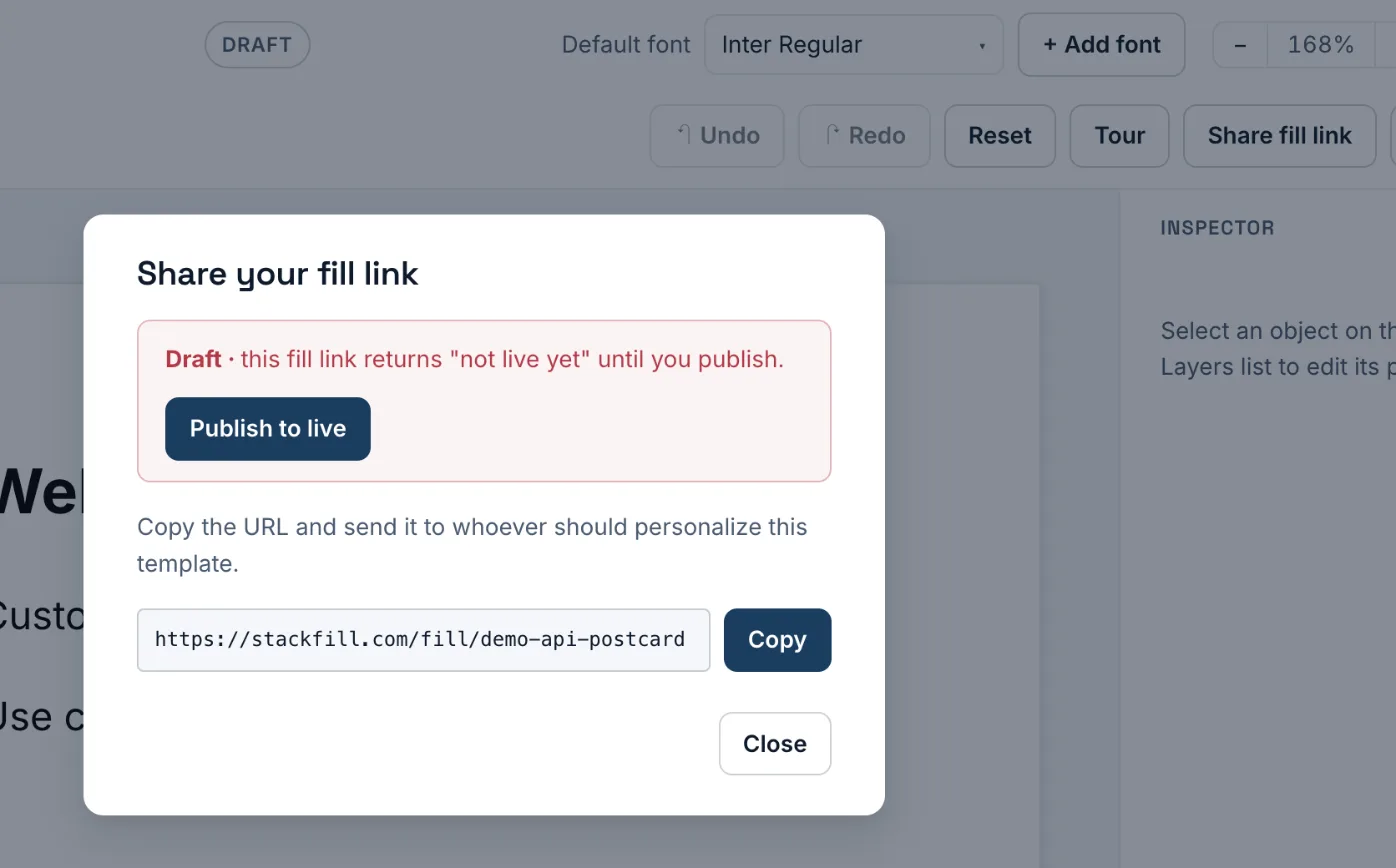
The Share dialog on a Draft template: Publish to live, then Copy the link. -
Step 2
Send the link
Press Copy and send the link however you work with customers: email, your website, a QR code on an order form. Anyone with the link can fill the template; nobody needs an account.
-
Step 3
What your customer sees
The customer sees a live preview of the card next to a short form with only the fields you marked. The card updates as they type; dropdowns show only the choices you set. They can't touch the logo, colors or layout.
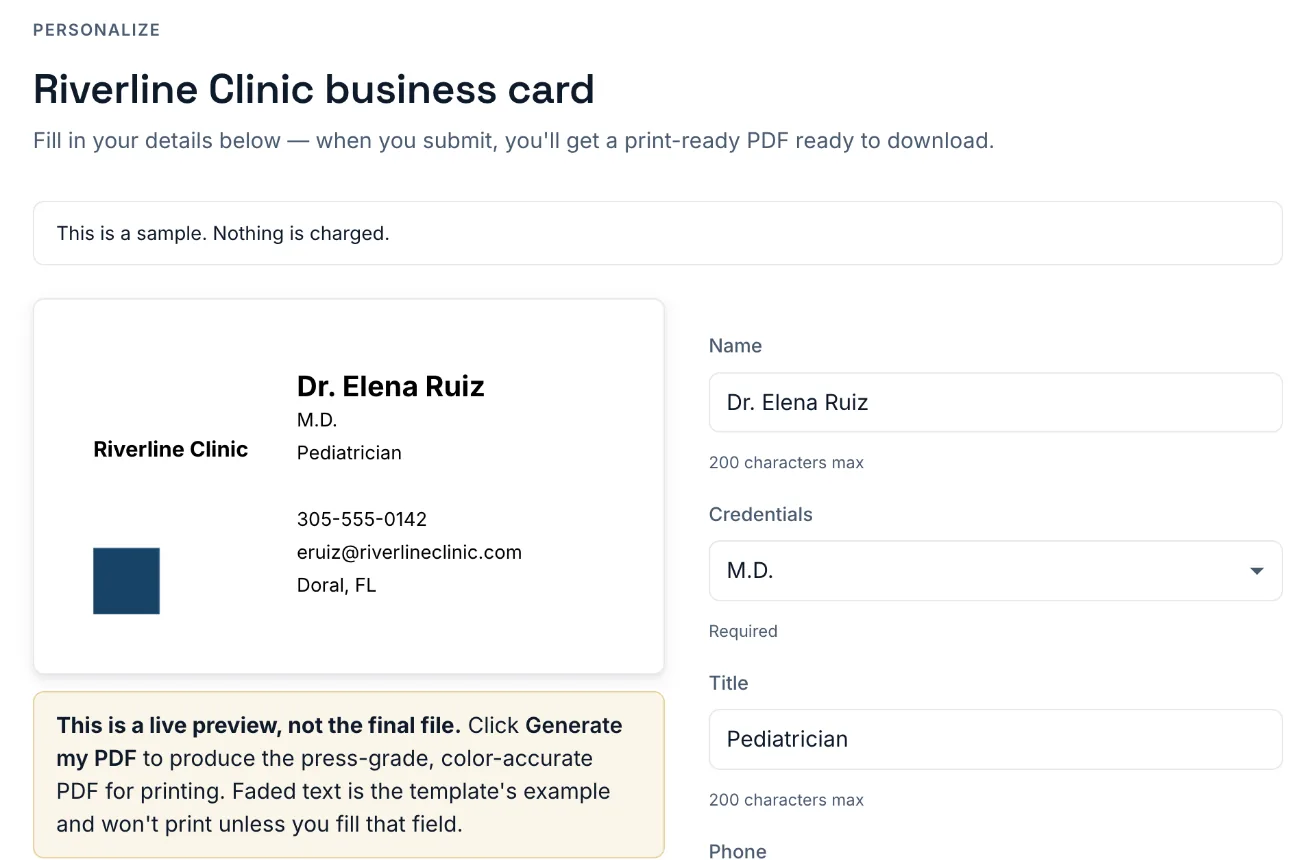
The customer fill page: live preview on the left, the fields you allowed on the right.