Help · Guide 5 of 5
Download print files
Where the finished, press-ready PDF goes and how you get it.
-
Step 1
The customer submits
When the customer presses submit, StackFill builds the final PDF from your locked template: CMYK kept, trim and bleed kept, PDF/X-1a. They see a Download PDF button and a fill reference they can quote to you. If you charge for the print job, take payment in your own checkout; StackFill does not take payments from your customers.
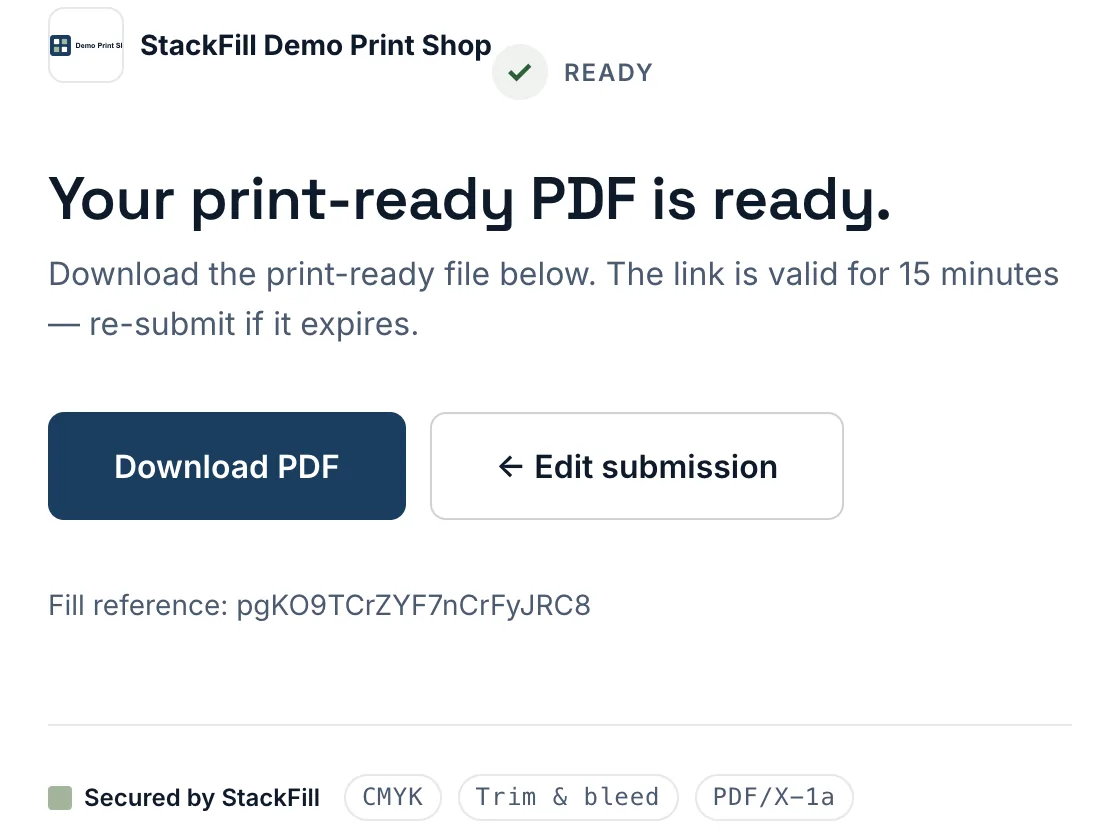
After submitting: the print-ready PDF with its fill reference. -
Step 2
Find it in Fill activity
Every submission lands in your workspace. Open the template's Fill activity to see each customer, the status and the date; Open PDF downloads the press file. The Renders list on the dashboard shows every file across all templates.
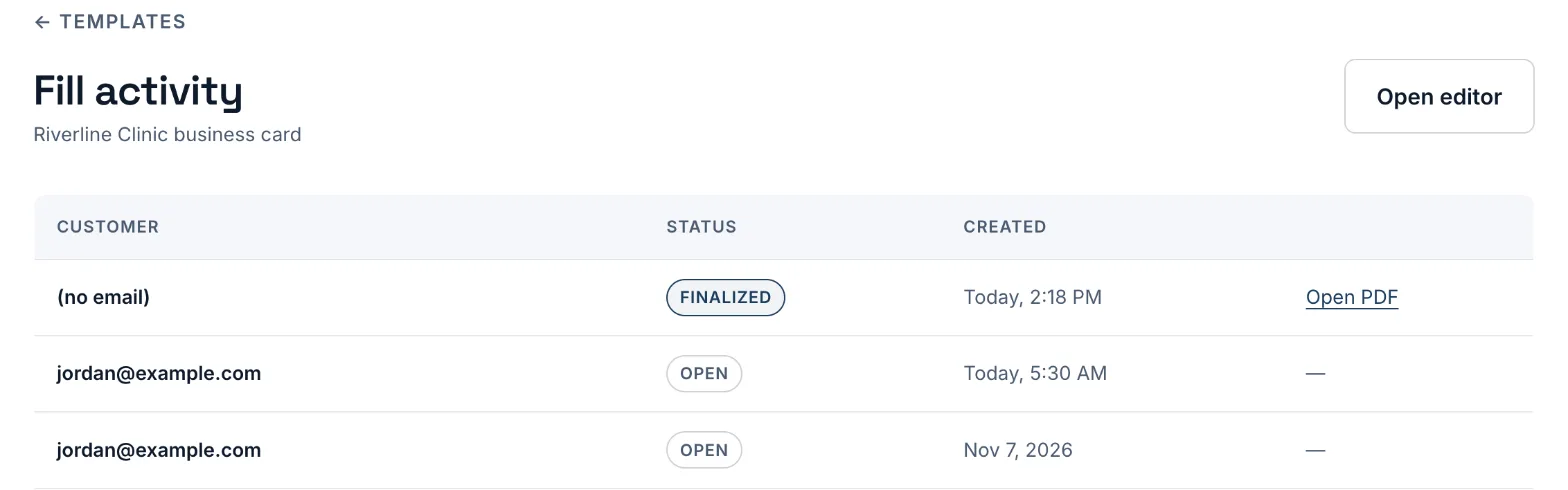
Fill activity: each finished fill has an Open PDF link to its press file. -
Step 3
Send it to press
The file is ready for your normal workflow: drop it into your RIP or imposition software like any approved PDF. Need a change? The customer can press Edit submission on the same page and submit again.
Final PDFs are included from the Starter plan; see pricing for monthly allowances.