2026-09-22 · StackFill
Rich Black CMYK: When to Use It and When to Avoid It
100K or rich black CMYK? Learn which black build belongs where, how to check ink limits and separations, and how to catch the error before press.
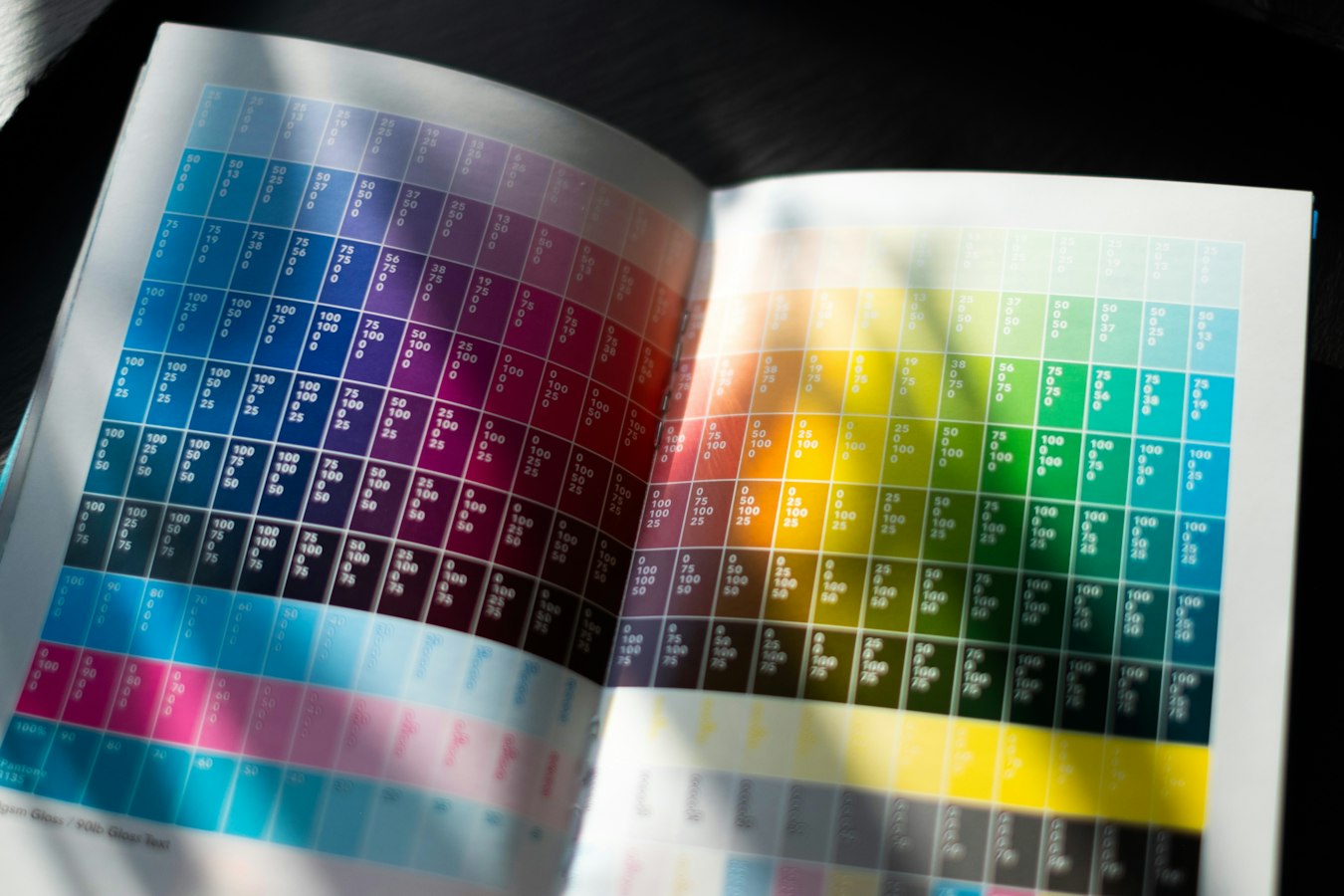
Rich Black CMYK: When to Use It, When to Avoid It, and How to Catch the Error Before Press
Black is not one color in CMYK. It is at least two, and picking the wrong one causes reprints and misregistration complaints every week. This reference covers both builds, where each belongs, and the preflight checks that catch mistakes before ink hits substrate.
What Rich Black and 100K Black Actually Are
100K black is a single-channel build: C0 M0 Y0 K100. Only the black plate carries ink.
Rich black CMYK mixes ink across multiple channels to produce a denser, deeper-looking black than K100 alone achieves on coated stock. Common builds vary by shop and press profile:
- C60 M40 Y40 K100, a general-purpose build used in many sheet-fed offset workflows
- C40 M30 Y30 K100, a lighter mix sometimes specified for digital offset or shorter-run presses
- C75 M68 Y67 K90, a maximum-density build; total ink coverage (TIC) runs very high, so watch your ink limit
None of these is universally correct. The right build depends on your press, your substrate, and your ink limit spec.
When to Use 100K Black
Use 100K black for body text, fine serif type, hairline rules, small logos, and any black element smaller than roughly 0.5 inches in any dimension. The reason is registration. On a four-color press, each plate prints in sequence. If any plate is slightly out of register, a multi-channel black will show a color fringe around the edges. A 6pt serif character with a magenta halo is a reprint.
100K also keeps TIC low, which matters for drying time and gang-run sheets where ink limit is a hard constraint. See Gang Run Printing: Prepress File Checklist for a broader look at ink management across shared sheets.
Use 100K on digital presses as well. Most toner-based systems render single-channel black more cleanly than a multi-channel mix. Rich black CMYK on a digital press can look muddy or show tonal shifts depending on the RIP.
When Rich Black Makes Sense, and Where It Causes Problems
Rich black earns its place on large solid fills: full-bleed backgrounds, thick banner bars, black panels that span several inches. On coated stock under offset conditions, K100 alone can look slightly washed-out at large sizes. A multi-channel mix adds optical density and produces the saturated look most clients expect.
Where rich black causes trouble:
- Small text. Type smaller than roughly 24-36pt should not be rich black. Even slight misregistration blurs thin strokes.
- Reversed-out type on a rich black background. Registration problems cause the background to bleed into letterforms, giving white type a color shadow.
- Overprint interactions. A rich black object set to overprint will mix with whatever is underneath and produce unexpected color shifts. The Overprint vs Knockout CMYK: Print Shop Field Guide covers this scenario in detail.
- Uncoated stock. High-TIC builds on uncoated paper cause excessive dot gain, drying problems, and show-through on thin substrates.
Ink Limit and Registration Risks
Total ink coverage is the sum of all four channel values at any pixel. C60 M40 Y40 K100 gives 240% TIC, well inside most offset limits. But C75 M68 Y67 K90 gives 300%, and some press profiles cap at 280% or lower. Exceeding the limit causes slow drying and set-off. Always confirm the ink limit with your press operator before approving a build.
Registration tolerance on a well-maintained sheet-fed offset press is typically 0.1-0.2mm. That is enough to create a visible fringe on type under 12pt or hairline rules under 1pt. Rich black belongs nowhere near those elements.
Also watch PDF export settings. If a file was built in RGB and converted at export, your black may have been remapped unpredictably. Check separation previews in Acrobat before the file leaves prepress. The Print Ready File Preflight: 7 Errors That Cause Reprints article lists the separation check as a primary step.
How to Check Before the File Leaves Your Hands
- Open the Output Preview (Separations) panel in Acrobat Pro. Toggle each plate. If a "black" element appears on the C, M, or Y plate, it is a multi-channel build. Decide whether that is intentional.
- Check your ink limit. Acrobat's Output Preview shows TIC. Set the warning to your spec.
- Zoom to 400% on all body text. In single-channel K view, body text should appear only on the K plate.
- Review reversed-out type. Verify that light type on dark backgrounds is knocking out, not overprinting.
- Run a preflight profile. A PDF/X-1a preflight profile catches color space issues, though flagging a rich black build as wrong is still a judgment call based on context. See PDF/X-1a Compliant Web-to-Print: Keep It Press-Ready for more on preflight profiles.
How Personalized Templates Inherit These Problems
When a customer edits a template and types new text, what CMYK values does that new text carry? If the template uses rich black CMYK for headlines and the customer's name drops in at 8pt, you have a problem the customer cannot see and will not catch in a screen proof.
This is one reason controlling which elements customers can edit matters as much as controlling which ones they cannot. StackFill ingests your finished press-ready PDF and lets you mark exactly which fields are editable. Text fields get their color values from the template's defined spec. Locked design elements, including black builds on background panels, stay exactly as you set them.
If your shop handles personalized collateral at volume, the Web to Print CMYK Color Accuracy: A Shop-by-Shop Audit Checklist covers how to audit CMYK fidelity across the full order flow.
Getting black right is not complicated, but it requires a deliberate decision. 100K for small type and rules. Rich black CMYK for large fills on coated offset work, with the ink limit confirmed. Check separations before the file moves. Build templates so customer edits cannot accidentally introduce the wrong build. That is the full checklist.