2026-11-16 · StackFill
Print Shop Turnaround Time: Fix File Problems
Bad files kill print shop turnaround time — not the press. Learn the six file errors that stall jobs and how to stop them before they hit your queue.
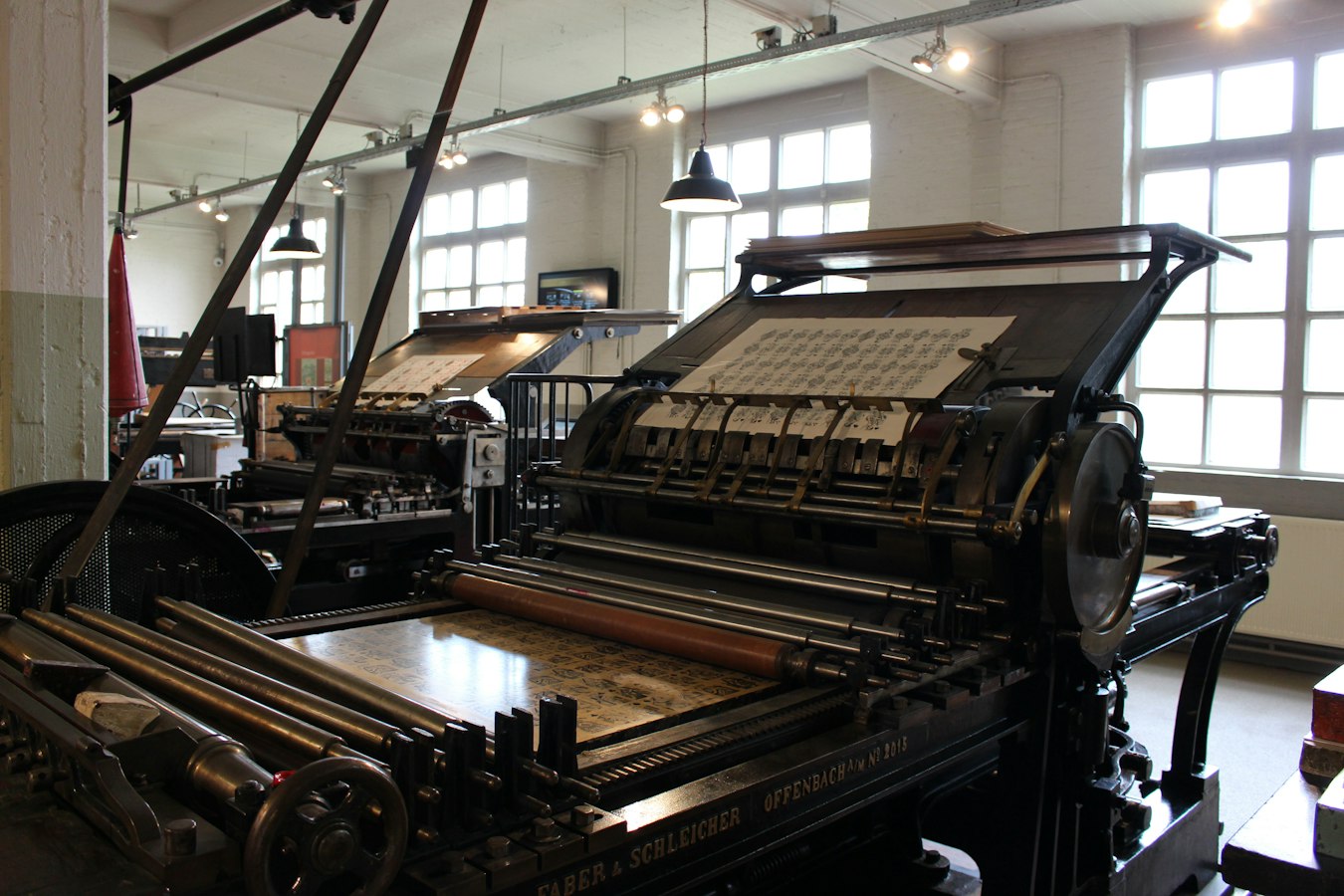
Ask any shop owner where print shop turnaround time goes, and most point to the press. The press is rarely the problem. The job sits in prepress because the file is wrong. Missing bleeds. Fonts that did not embed. RGB photos. A transparency that never flattened. A layout that will not impose clean. Every one of these stalls a job before it ever reaches a plate or a toner engine.
This is a shop-floor breakdown of the specific file errors that cost you hours, how to spot each one fast, and how to stop the biggest source of broken files from landing in your queue at all.
Why File Problems Are the Real Turnaround Time Killers
Press time is predictable. You know how long 500 double-sided cards take. You can schedule it. What you cannot schedule is the file that shows up at 4 p.m. with a hairline of white around the trim edge and a font nobody has.
File problems are expensive because they happen in the gap between order and production, and that gap is invisible to the customer. They think the clock started when they paid. You know it does not start until the file is clean. Every round trip to fix a file adds a day, sometimes two, because the customer has to answer an email, find the right person, and send a new version that may have its own problems.
The worst part is that file errors are not random. The same six issues cause most of the delay, over and over. Once you name them, you can build a defense against each one. And once you stop customers from editing files by hand, most of them stop happening at all.
The Six File Errors That Stall Jobs Most Often
Here are the six that eat the most hours on a typical shop floor, with the fast way to catch each one.
1. Missing bleed. The art stops exactly at the trim line, so any cut drift leaves a white sliver. You cannot invent bleed that was never there. You have to go back to the customer or fake an extension, and faking it on photos looks bad. Catch it by checking that art extends past the trim box by the standard amount, usually 0.125 inch. If you want a clean reference for what correct setup looks like, see the PDF bleed and trim setup reference.
2. Unembedded fonts. The file opens fine on the designer's machine because the font lives there. On yours, type reflows or substitutes, and the proof no longer matches. This one is sneaky because it may not throw an error until the RIP chokes. Preflight for embedding on every incoming file. The PDF font embedding guide walks through how to confirm and fix it before press.
3. RGB images. A photo or logo comes in as RGB and gets converted at the last second, often by the RIP, often to colors nobody approved. Blues go purple. Bright greens go flat. Now you are explaining to a customer why the proof they saw does not match. Convert on purpose, with a known profile, not by accident. The real cost of this is laid out in CMYK vs RGB for print.
4. Unflattened transparency. Drop shadows, glows, and blend modes that were never flattened can render differently across RIPs, or drop out entirely. The file looks correct on screen and wrong on paper. Check your flattener settings and spot the live transparency before output. PDF flattening for print covers what breaks and how to test for it.
5. Bad imposition. The single page is fine, but the layout does not nest for your sheet or your binding. Pages land out of order, creep is ignored, or a gang run wastes stock. This is an hour of manual rework per job if you catch it, and a reprint if you do not. See the digital print imposition reference for the setup that holds.
6. Wrong resolution. The image looks sharp on a laptop and prints soft because it is 96 ppi scaled up. The 300 dpi rule is a start, not the whole story. PDF resolution for print goes past the rule of thumb so you can judge the edge cases.
Notice what these have in common. Almost none of them are visible to the person who sent the file. They look at a screen that lies about color, scale, and edges. You look at a press that does not.
Customer-Edited Files: The Turnaround Time Problem Nobody Talks About
Here is the one that does the most damage and gets the least attention. A customer takes a file you built, opens it in whatever they have, changes a phone number or a name, and sends it back. It arrives mangled.
The font changed because they did not have yours. The text box moved. A logo got dragged and is now sitting in the bleed. The color shifted because their software reflowed everything into RGB. They flattened the layers you carefully kept apart, or worse, they deleted one. Now you are not fixing a file. You are rebuilding the customer's edit from scratch and hoping you matched what they wanted.
This is the single biggest source of late, broken files in most shops, because it combines all six errors above into one package and adds a human who is sure they did it right. Every reorder with a small change becomes a full prepress pass. Every franchise location that tweaks an address becomes a support ticket. And every one of those cycles hits print shop turnaround time harder than any press delay ever would.
The fix is not to teach the customer prepress. It is to stop letting them edit the file at all. Give them a controlled way to change only the words and images you allow, against a proof that shows exactly what will print. When the edit happens inside a locked structure, the bleed stays, the fonts stay embedded, the color stays CMYK, and the layout cannot move. The file comes back clean because it was never free to break.
StackFill does exactly this. It takes the finished press PDF you already have, turns the fields you choose into editable ones, and locks everything else. The customer personalizes against a live proof and you get back a byte-identical, press-ready CMYK PDF. Nobody rebuilds the design, and nobody hand-edits a file into a mess. More on the logic of that in how to let customers edit a PDF without changing the design.
Preflight as a Time Tool, Not Just a Quality Check
Most shops treat preflight as a gate: catch the bad file, send it back, feel good about quality. That framing hides the real value. Preflight is a time tool. Every error it catches early is an error that does not surface at the press, where it costs ten times as much to fix.
The trick is to preflight at the door, not at the plate. The sooner in the order flow you run the check, the cheaper the fix. If you preflight the moment a file is uploaded, the customer is still at their desk and can answer. If you preflight an hour before the press is scheduled, they are gone and your window is gone with them.
Standardize what you check so it is the same every time: bleed present, fonts embedded, images CMYK, resolution adequate, transparency flattened, trim and crop marks correct, overprint set the way you expect. The print-ready preflight error list is a good base to build from, and the overprint versus knockout field guide covers one check people skip until a job comes out wrong.
Preflight also protects the proof. When the customer approves a soft proof, that approval only means something if the file cannot change after it. If you are not sure your proof matches your output, the soft proofing versus hard proofing guide is worth a read before you trust the screen.
How Controlled Self-Serve Personalization Cuts File-Back Cycles
A file-back cycle is every round trip between you and the customer to get a file right. One cycle is a day lost. Two or three is a week, and it is the most common reason a simple job misses its date.
Controlled self-serve personalization cuts those cycles to zero for a large class of jobs. Here is why. When the customer edits inside a fixed template, the file cannot come back broken, so there is nothing to send back. The edit and the proof happen in one step. The customer sees the live proof, approves it, and the clean PDF is already on your side. No email thread. No version confusion. No rebuild.
This matters most for the jobs that repeat. Business cards for a growing firm. Postcards for a dozen franchise locations. Event signage with a new date each quarter. These are the jobs where hand-editing never ends, because the change is always small and always coming back. Move them to a locked fill link and the per-order prepress time drops to almost nothing. See how this plays out for repeat work in the print shop reorder workflow and the broader reorder system.
The lock itself is what makes it safe. You decide which fields open and which stay fixed, down to the layer. PDF layers for print explains how that line gets drawn and held. For print shops that still hand-edit every customer change, this is the part of the day you get back.
It works for franchise and corporate marketing teams too, where the goal is standard collateral across many locations without a designer touching each file. Brand template lockdown for franchise locations covers that case, and marketing teams can see how the controls apply to them.
Build a File Standard and Enforce It Before the Job Hits Your Queue
The shops with the best print shop turnaround time are not faster at fixing files. They have fewer files to fix. They publish a standard and they enforce it before the job enters the queue.
A file standard is simple to write. Bleed amount. Trim size. Color mode. Minimum resolution. Fonts embedded or outlined. Transparency flattened. Preferred PDF flavor, usually something close to PDF/X-1a. Put it on your order page and in your quote. Most customers will try to meet it if you tell them clearly.
But a standard printed on a page is a request, not a guarantee. Enforcement is what saves the hours. You enforce in two ways.
First, preflight at upload and reject files that fail, with a specific reason, while the customer is still there to fix it.
Second, and more powerful, remove the chance to break the standard at all. When the file is already a locked template and the customer only fills the fields you opened, there is no non-conforming file to reject. The standard is baked into the template. The bleed is already right. The fonts are already embedded. The color is already CMYK. The customer cannot undo any of it because they never had the keys.
That is the difference between checking for problems and preventing them. Checking saves some time. Preventing saves the whole cycle. If you want to see how a finished PDF becomes a controlled, fillable template without rebuilding the design, the how it works page lays out the steps, and you can start with the jobs that repeat most and cost you the most prepress time.
Print shop turnaround time is not a press problem. It is a file problem. Fix the file at the source, lock what should not change, and let the customer fill only what should. The press has been waiting for you the whole time.